Contacts
Manage your contact list to quickly access frequently called numbers and sync contacts across your devices.
Accessing Contacts
- Log in to your WebFones account
- Click Contacts in the navigation menu
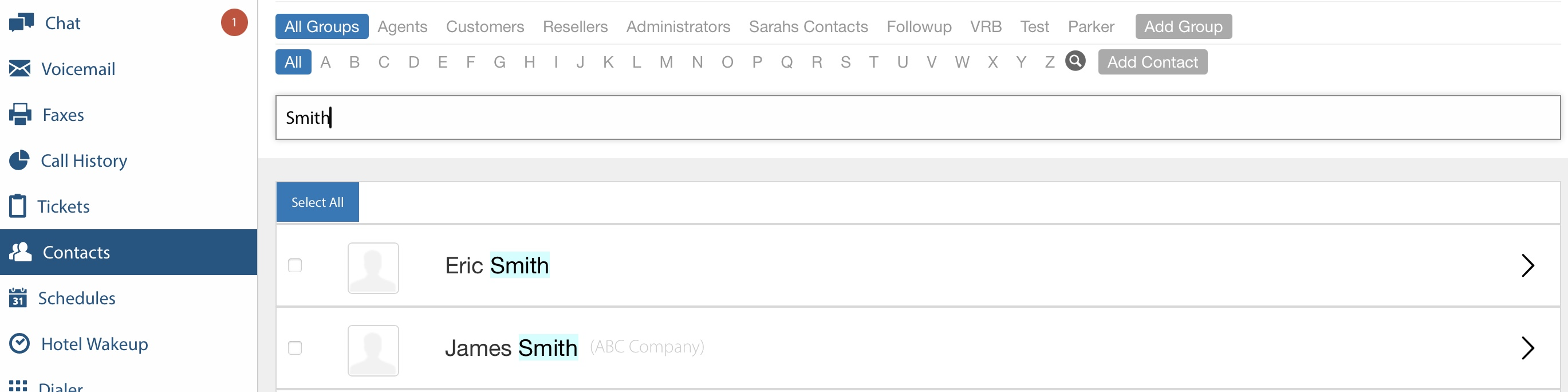
Searching Contacts
- Enter a search string in the search field.
- Click on a group to find a group.
Adding a Contact
- Click Add Contact
- Enter the contact information: (Name, Phone number(s), Email address, Company, Notes)
- Click Save
Editing a Contact
- Find the contact in your list
- Click on the contact to view
- Click Edit
- Make your changes
- The screen will auto-save
Adding a Contact
- Click Add Contact
- Make your changes
- Click Save Contact or Cancel
Adding a Group
- Press the Add Group button
- Enter a new group name.
- Click Save
Adding a Contact to a Group
- Find several contacts in your list
- Check the box beside each contact
- Click Add to Group on the top of the list
Deleting a Contact
- Find the contact in your list
- Check the box beside the contact
- Click Delete Selected on the top of the list
Searching Contacts
Use the search bar at the top of the contacts page to quickly find contacts by:
- Name
- Phone number
- Company
Importing Contacts
Visit the API section of the documentation on how to import and sync your contacts.